

Creators
Creators repurpose one recording for YouTube, TikTok and Instagram without reshooting. Expand video from vertical to horizontal for a YouTube upload, or the other way round for Shorts.

Expand video with AI instead of cropping it. Upload a clip, pick 16:9, 9:16, 1:1 or another ratio, and our AI video expander paints in the scene outside the original picture. A 5-second clip is ready in about a minute, with the same audio.
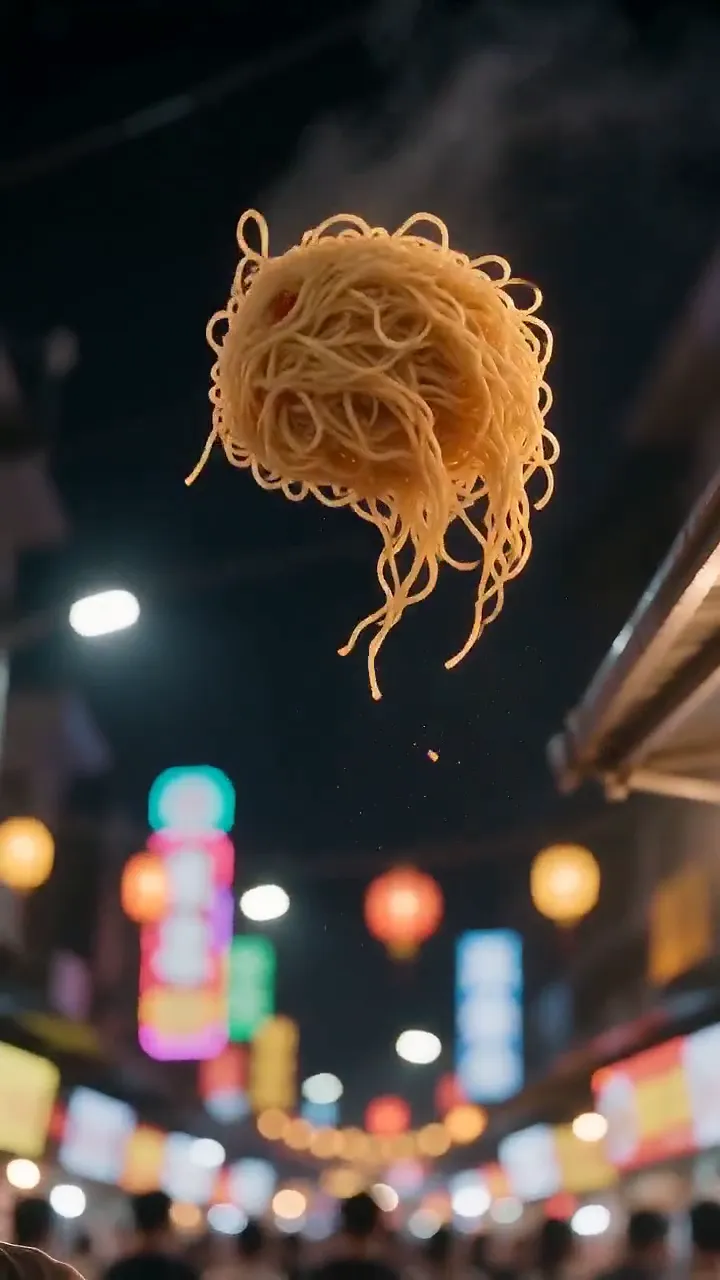
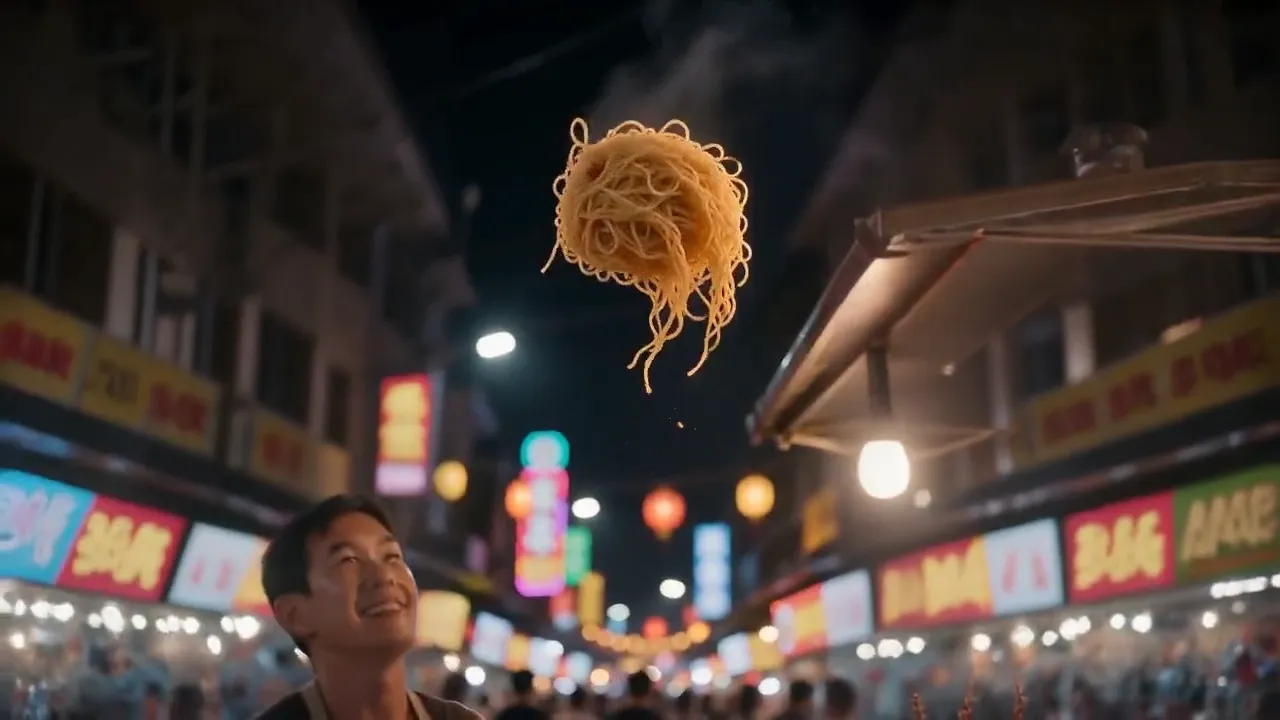
9:16 → 16:9
A 9:16 street-food clip expanded to 16:9. The AI video expander added the neighbouring stalls, lanterns and crowd, and the cook stays exactly where he was.
16:9 → 9:16
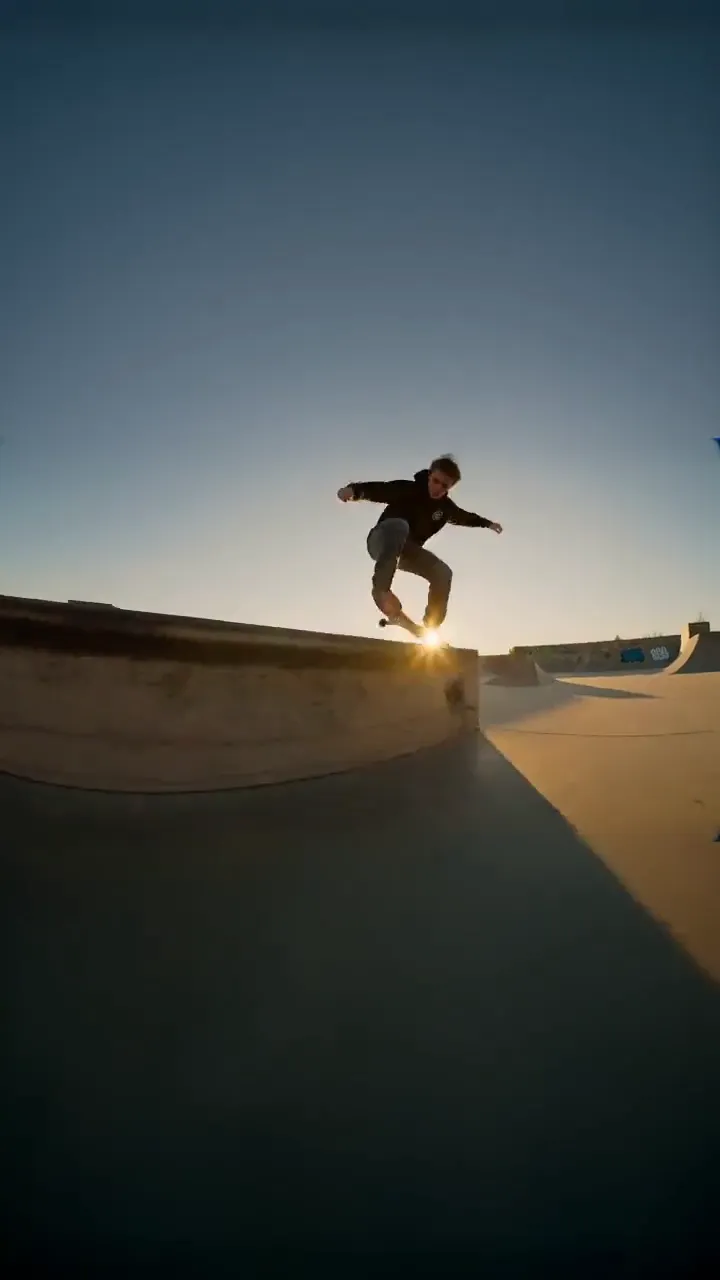
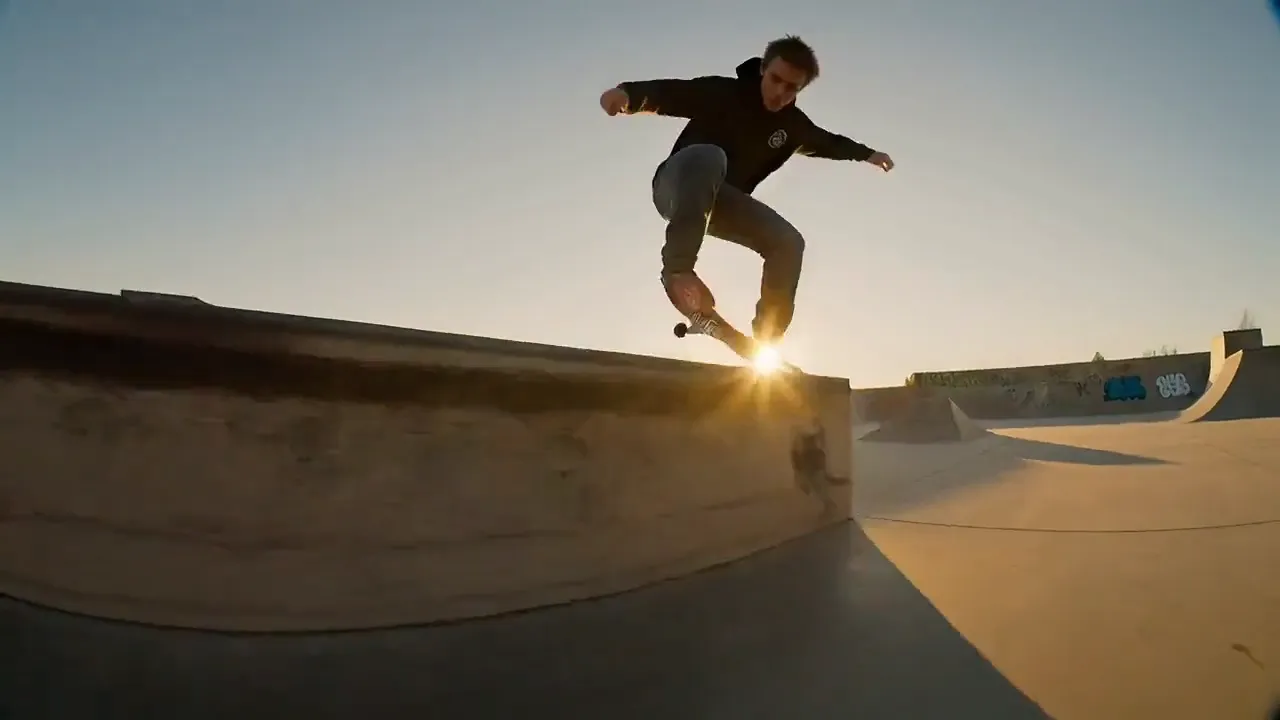
A 16:9 skateboarding shot expanded to 9:16 for Reels and TikTok. The sky and the ramp continue above and below the rider instead of being cut off.
1:1 → 16:9
A 1:1 product shot of a perfume bottle expanded to widescreen. Petals and reflections continue naturally to both sides.

 1
Drop in a clip up to two minutes long. You see the exact cost before anything is processed.
216:9 for YouTube, 9:16 for TikTok, Reels and Shorts, 1:1 or 4:3 for feeds, 21:9 for cinematic banners. Add an optional prompt if you want to steer what appears in the new area.
3The model keeps your video in the centre and generates the new background around it, so motion and lighting stay consistent across the new aspect ratio.
4Compare before and after, then download an MP4 with the original audio. Results stay in your history for 30 days.
An AI video expander is a tool that changes a video's aspect ratio by generating new picture content around the original video, instead of cutting part of the picture away. The technique is called video outpainting: the model studies the scene — perspective, light, colours, movement — and continues it to the left and right, or above and below.
The result is a full-screen video in the new aspect ratio. You do not lose the subject to a crop, and you do not get black bars or a blurred copy of the video behind it. An AI video expander is most useful when you need one clip in several formats: a vertical phone recording for a YouTube video, a widescreen trailer for Shorts, or a square ad for a 16:9 landing page.
Classic editors can only scale, crop or pad. When you expand video with AI, the new pixels are generated for your specific scene, so a beach stays a beach and a city street keeps its buildings and traffic. Because the video is generated as a whole, the new edges move with the camera instead of sitting still like a painted backdrop.
| Method | What happens | Good for |
|---|---|---|
| Crop | Cuts the sides or the top and bottom off. Subjects near the edge are lost. | Clips with lots of empty space |
| Black bars | Adds letterbox or pillarbox bars. Nothing is lost, but a third of the screen is empty. | Archival or legal footage |
| Blur background | Puts a blurred, zoomed copy behind the video. Fills the screen but looks like a workaround. | Quick reposts |
| AI expansion | Generates real scene content around your video. | Anything you want to look native in the new aspect ratio |
Expanding video with AI is the only option that keeps the whole original frame and still fills the screen. That is why we built aiexpand.video as a focused AI video expander rather than a general editor.
16:9
YouTube, websites, presentations, TVs
9:16
TikTok, Instagram Reels, YouTube Shorts, Stories
1:1
Instagram and Facebook feeds, marketplace listings
4:3 and 3:4
feeds, tablets, classic framing
21:9
cinematic banners and website headers
In our tests a short 5-second video came back in 40 to 70 seconds. Many outpainting tools take several minutes for the same clip.
The expanded MP4 keeps the original soundtrack, so you can post it straight away.
The AI video expander only paints the new area; your footage stays in the centre at full quality.
If a job fails, the credits go back to your balance automatically.
If your clip already has letterbox bars, we detect them in the browser and trim them before you expand video, so the bars do not end up in the middle of the expanded video.
Credits are charged by the length of the clip and the resolution you choose, and you see the exact cost before you start.
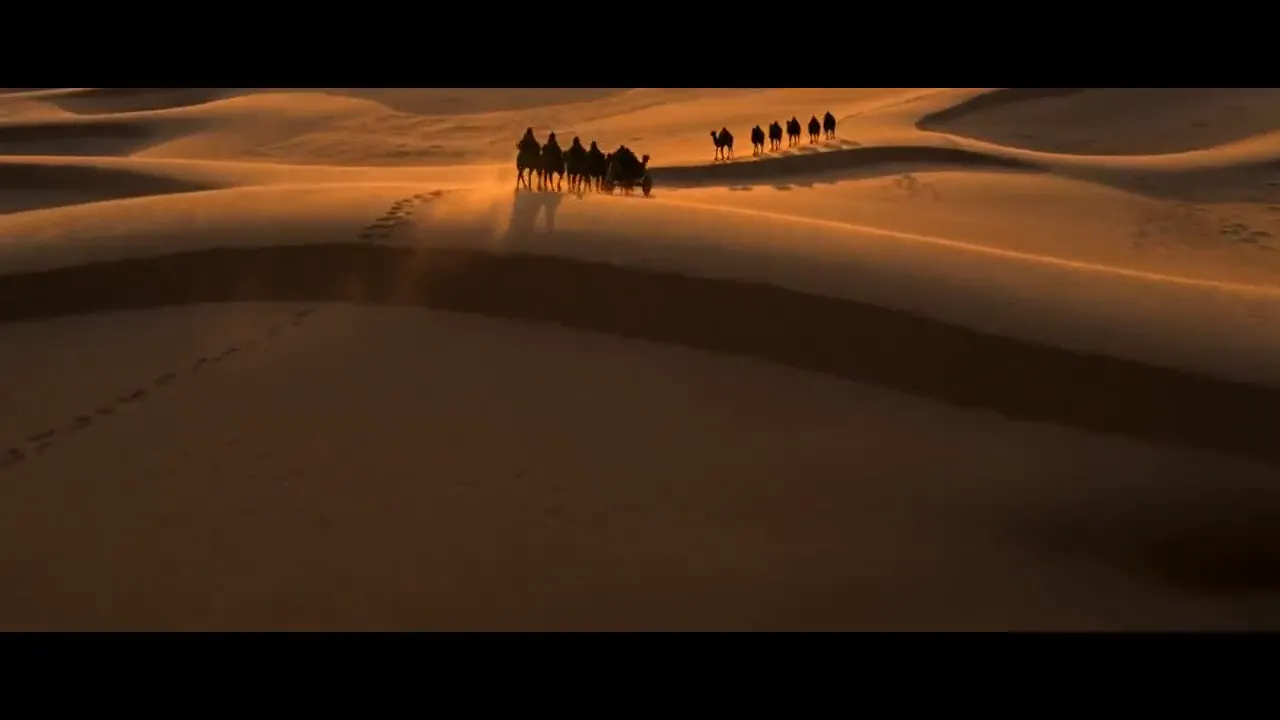
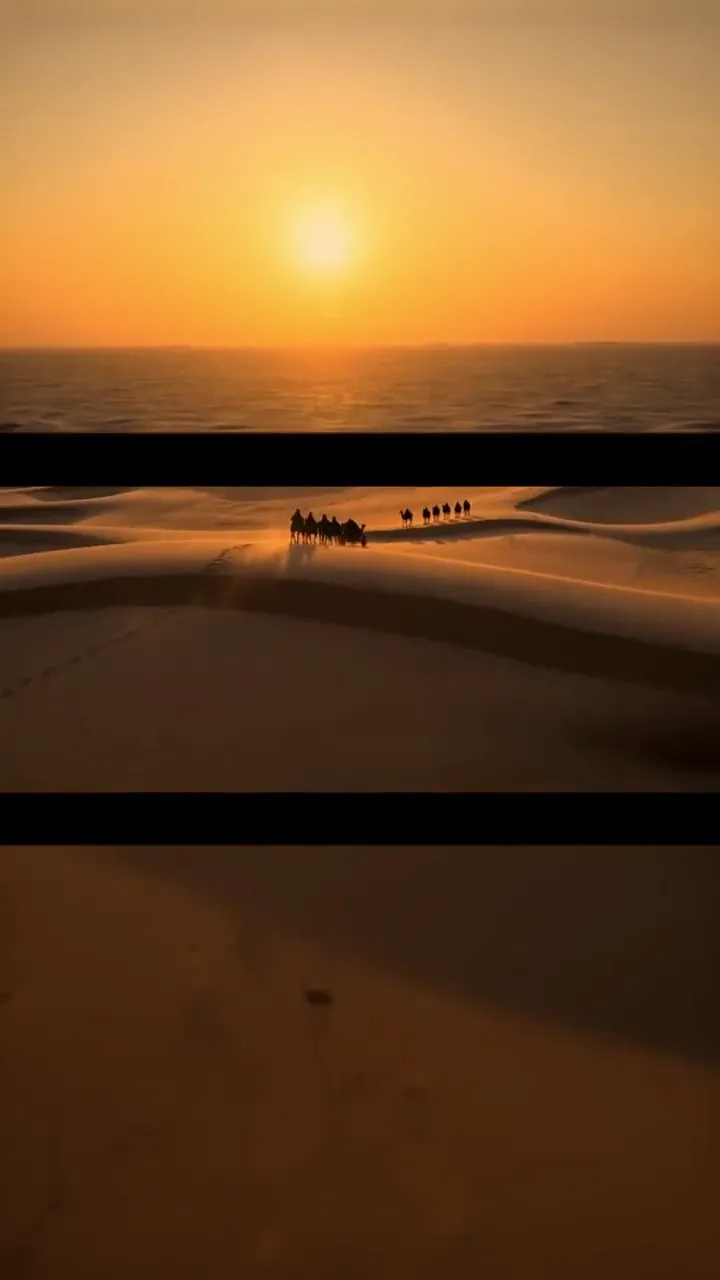
Creators repurpose one recording for YouTube, TikTok and Instagram without reshooting. Expand video from vertical to horizontal for a YouTube upload, or the other way round for Shorts.
Marketers resize ad creatives to every placement. One product video becomes 16:9, 1:1 and 9:16 versions with the product fully in view.
AI video makers fix clips that came out of a generator in the wrong ratio. Many AI video models only output one or two aspect ratios; an AI video expander turns them into the format the platform wants.
Editors extend a shot that was framed too tight, or reframe archive footage for modern screens.
Phone footage is vertical, but YouTube, websites and TVs are widescreen. Instead of dropping a narrow strip in the middle of a black screen, expand video sideways: the AI video expander continues the room, the street or the landscape to the left and right, so the clip fills a 16:9 player.
Convert vertical videoShorts, Reels and TikTok want full-height video. Cropping a widescreen shot to 9:16 throws away two thirds of it. When you expand video upward and downward instead, the whole original shot stays visible and the AI adds sky, floor or ceiling to reach the vertical aspect ratio.
Older footage and many social clips are square or 4:3. Expand video to 16:9 to use them in a modern edit without pillarbox bars, or to 21:9 for a cinematic website banner.
Aspect ratio changerText-to-video and image-to-video models often lock you into one shape. Run the clip through the AI video expander to get the ratio the platform needs without generating the whole video again.
Uploads are only used to process your own job: they go to our AI processing provider and nowhere else. We never show them in a public gallery and do not use them to train models. Source files are deleted after 3 days and results after 30 days.
Expand video free for the first 5 seconds at 480p. Paid plans start at $9.90 a month, and 720p costs 4 credits per second of video.
See pricingIt changes the aspect ratio of a video by generating new content around the original video, so nothing is cropped and no black bars are added.
You can expand a 5-second preview of one video for free at 480p after signing in. Longer clips and 720p or 1080p use credits.
A clip of about five seconds usually takes about a minute. Longer clips take longer; you can leave the page and find the result in your history.
16:9, 9:16, 1:1, 4:3, 3:4 and 21:9.
Yes. The downloaded MP4 keeps the original soundtrack.
MP4 or MOV, up to two minutes and 100 MB.
No. The AI video expander keeps your video in the centre and only generates the new area around it.
If you leave them in, the model treats them as part of the picture. The uploader detects letterbox and pillarbox bars and trims them before you expand video.
Yes. The prompt is optional; describe the setting and the AI video expander will use it for the new area.
The credits are returned to your balance automatically.
Uploads are deleted after 3 days and results after 30 days. Download anything you want to keep.
Yes, the output belongs to you, as long as you have the rights to the video you uploaded.
Yes. The AI video expander runs in the browser, so you can upload from your phone's camera roll and download the result there too.
Crop when the subject is small and there is plenty of empty space around it. Expand video when the subject fills the frame or sits near the edge, because a crop would cut it off.
Upload a clip, pick a video aspect ratio and see a free preview. No editing skills needed: pick a ratio, expand video, download.